How to Display Art on Any Smart TV (The Complete 2026 Guide)
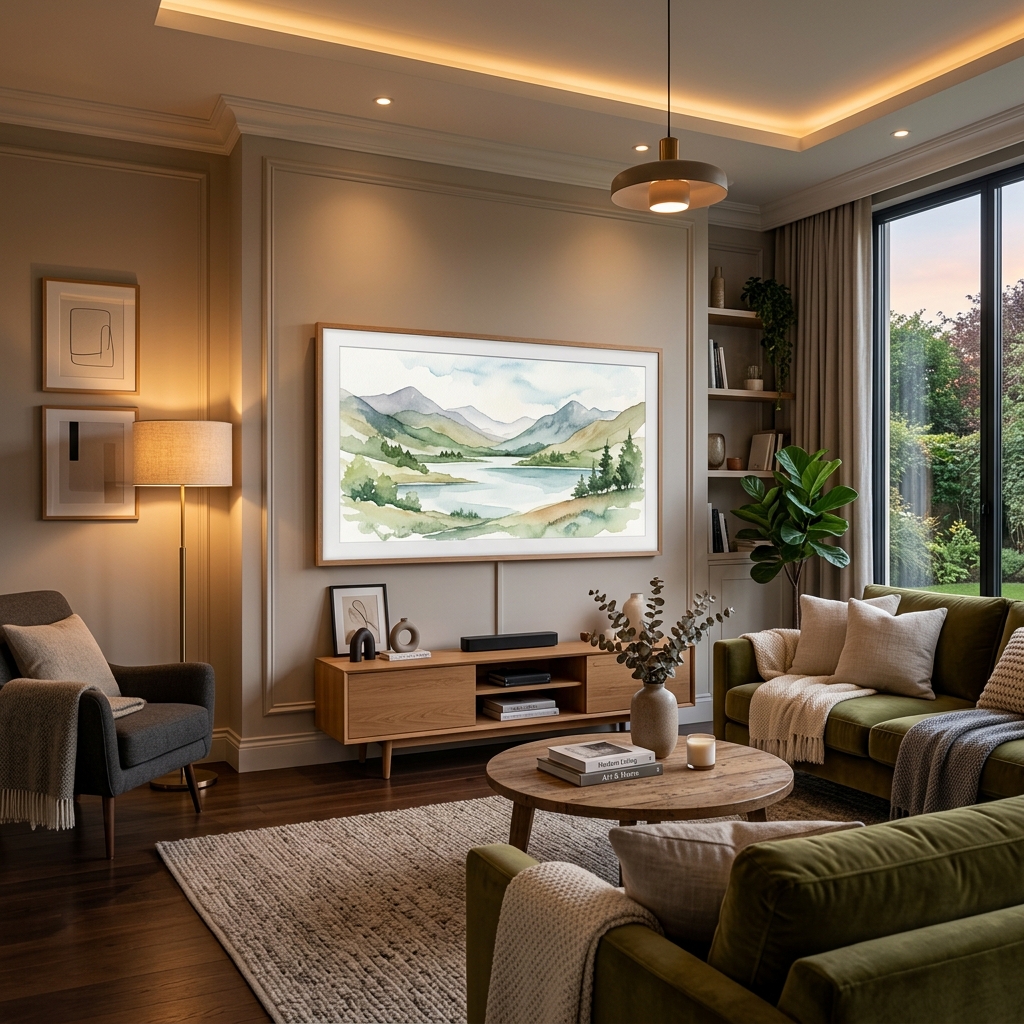
A black TV screen is one of the most wasted spaces in a home. Whether you're trying to recreate the look of a Samsung Frame TV without the price tag, or simply want something beautiful to look at when you're not streaming, displaying art on your TV is easier than most people think — and you don't need any special equipment.
This guide covers every method available in 2026, with an emphasis on the USB approach, which works on virtually every TV brand without accounts, apps, or internet connections.
Method 1: USB Flash Drive (Works on Almost Every TV — Recommended)
This is the most universal and reliable method. It requires no Wi-Fi, no accounts, and no streaming devices. If your TV was made in the last decade, it almost certainly has a USB port and a built-in photo viewer.
What You'll Need
- A USB flash drive (any size — even 4GB is plenty for art images)
- Art images downloaded to your computer
- Your TV's remote
Step 1: Prepare Your Images
Before copying anything to the drive, get your images ready:
- File format: Save images as JPEG (.jpg). Most TVs don't support HEIC files (the default format on iPhones), so convert these first using a free tool like CloudConvert or your phone's export settings.
- Resolution: Aim for 3840 × 2160 pixels (4K) for the sharpest display. If your TV is 1080p, 1920 × 1080 is fine. Using the correct resolution avoids black bars or blurry upscaling.
- Aspect ratio: Most TVs are 16:9 widescreen. If your art image is square or portrait-oriented, you'll see black bars on the sides — this is normal and can even look elegant with the right artwork.
- File naming: If you want images to display in a specific order, prefix filenames with numbers:
001_monet.jpg,002_vermeer.jpg, etc. - Folder: Place all your images in a single folder called something simple like
artorpictures. Avoid deeply nested subfolders — some TVs only scan one level deep.
Step 2: Format and Copy to Your USB Drive
- Drive format: Use FAT32 for drives under 32GB — it's universally compatible with all TV brands. For drives over 32GB, use exFAT. Avoid NTFS, which many TVs won't recognise.
- Copy your art folder to the root of the drive (not buried inside other folders).
- Safely eject the drive from your computer before removing it.
Step 3: Connect to Your TV
- Plug the USB drive into your TV's USB port. This is usually on the side or back panel. Note: if you have a Roku streaming stick plugged into your TV's HDMI port, that stick's USB port is for power only — use your TV's own USB port instead.
- Most TVs will automatically detect the drive and prompt you to open it, or will launch a media player automatically.
- If nothing happens, press the Home or Input button on your remote and look for a USB, Media, or Gallery option.
Step 4: Start a Slideshow
- Navigate to your folder and look for a Slideshow, Play All, or Repeat option.
- Adjust the slide duration if available — 30 to 60 seconds per image tends to look best for art display.
- Dim your TV's backlight in the picture settings to make art look more like a real framed piece and reduce screen wear.
Brand-Specific Tips
| TV Brand | Where to Find the Photo Player |
|---|---|
| Samsung | Home → Samsung Gallery / My Photos → USB |
| Samsung Frame TV | Home → Art Mode → My Photos → USB Device → Save to TV |
| LG | Home → LG Gallery (webOS) → Storage → USB |
| Sony | Home → Media Player → USB Drive |
| Hisense / TCL / Vizio | Settings → Screensaver or Picture Settings → Gallery |
| Any brand | Settings → Media / USB / Gallery |
Burn-in warning: Regular LCD and OLED TVs are not designed to display a static image 24/7. Use the USB slideshow method for social gatherings or limited periods. Samsung Frame TVs and LG Gallery Edition TVs are specifically engineered for always-on art display and are safe for continuous use.
Method 2: YouTube Art Screensavers (Works on Any Smart TV with YouTube)
If you don't want to manage files, this is the next easiest option and works on any smart TV with the YouTube app — which is almost all of them.
- Open the YouTube app on your smart TV.
- Search for "TV Art Screensaver" or "Art Slideshow 4K".
- Select a video you like and press Full Screen.
- Mute the volume if you don't want background music.
Most of these videos run for 1–2 hours and feature high-resolution reproductions of classical and fine art paintings. Some channels also offer specific styles like impressionism, abstract, or botanical art.
Best YouTube Channels for TV Art
- Verdot Studio TV Art — curated classical art, high quality
- Lindell Gallery & Co — elegant mixed collections
- TV Art Gallery — large variety, frequently updated
- The Museum Ambience — museum-style presentation with ambient sound
- Vintage Art TV — focused on vintage and antique styles
- Art for Your TV by 88 Prints — well-formatted for widescreen display
Method 3: Chromecast / Google TV
If you use a Chromecast or a TV running Google TV, you can display art through Ambient Mode — Google's built-in screensaver system.
For Older Chromecast Dongles (via Google Home app):
- Open the Google Home app on your phone.
- Tap and hold your Chromecast device tile.
- Tap Settings in the top right corner.
- Scroll down and tap Ambient Mode.
- Choose Art Gallery (curated by Google Arts & Culture) or Google Photos to use your own images.
For Chromecast with Google TV (via TV screen):
- Press the Settings icon (top right of the home screen).
- Go to System → Ambient Mode → Settings.
- Choose Art Gallery or Google Photos, then select your album.
To use your own art images: Upload them to a Google Photos album first, then select that album in the Ambient Mode settings.
Method 4: Apple TV
Apple TV's screensaver system can pull images directly from your iCloud Photo Library.
- Upload your art images to an iCloud Photos album on your iPhone, iPad, or Mac.
- On Apple TV, go to Settings → General → Screensaver.
- Select Photos, then choose iCloud.
- Pick the album containing your art.
Method 5: Amazon Fire TV
Fire TV works best with Amazon Photos, which is included free with Amazon Prime.
- Download the Amazon Photos app on your phone or visit the Amazon Photos website.
- Log in and upload your art images, then create a dedicated folder or album for them.
- On your Fire TV, go to Settings → Display & Sounds → Screen Saver.
- Select Amazon Photos and choose your album.
Where to Find Free Art Images for Your TV
You don't need to create your own art — thousands of public domain masterworks are available to download for free in high resolution:
- Wikimedia Commons — huge library of public domain art
- The Metropolitan Museum of Art — over 400,000 free high-res images
- The Art Institute of Chicago — excellent quality, varied collection
- RoomArts Free TV Art Collection — curated, TV-optimized downloads
Looking for More Printable Wall Art?
If you love the look of art on your screens, you'll love it even more on your walls. Our printable wall art collection features high-resolution digital downloads that you can print at home or at any local print shop.
Check out our popular Funny Frog Bathroom Wall Art for a touch of whimsy in your home decor, or browse our Framed Art TV category for more digital-first masterpieces.
Final Tips
- Dim the backlight when displaying art to reduce glare and make the image look more like a real painting.
- Use a timer or smart plug to automatically turn the TV off after a set period if you're worried about wear.
- Burn-in risk: Only the Samsung Frame TV and LG Gallery Edition are designed for 24/7 static image display. All other TVs should be used for art display occasionally, not continuously.